
apt and dnf
Your hub can turn the Linux archives of a command line tool into .deb and .rpm packages. It serves them as apt and
dnf repositories from the hub’s GitHub Pages site, signed with a key of your own.
The project’s releases must include Linux archives. tapster’s Bun workflow builds them. With GoReleaser, keep linux in
the build’s goos list.
1. Make the signing key
Section titled “1. Make the signing key”You need GnuPG on your computer (brew install gnupg). On Linux you also need secret-tool, so tapster can keep a copy
of the key.
In tapster setup, open Optional extras and click Make the signing key under apt and dnf repositories. If GnuPG is missing, the page shows the command that installs it and a Check again button.
tapster turns on GitHub Pages for the hub, with GitHub Actions as the source. It makes an RSA 4096 key with GnuPG on your computer and stores it.
Prefer a terminal? In a clone of your hub, run:
bunx @doguyilmaz/tapster init --linux2. Pick the tools
Section titled “2. Pick the tools”Below the key, tapster setup lists every command line tool in tapster.yml that maps a linux-amd64 or linux-arm64
archive.
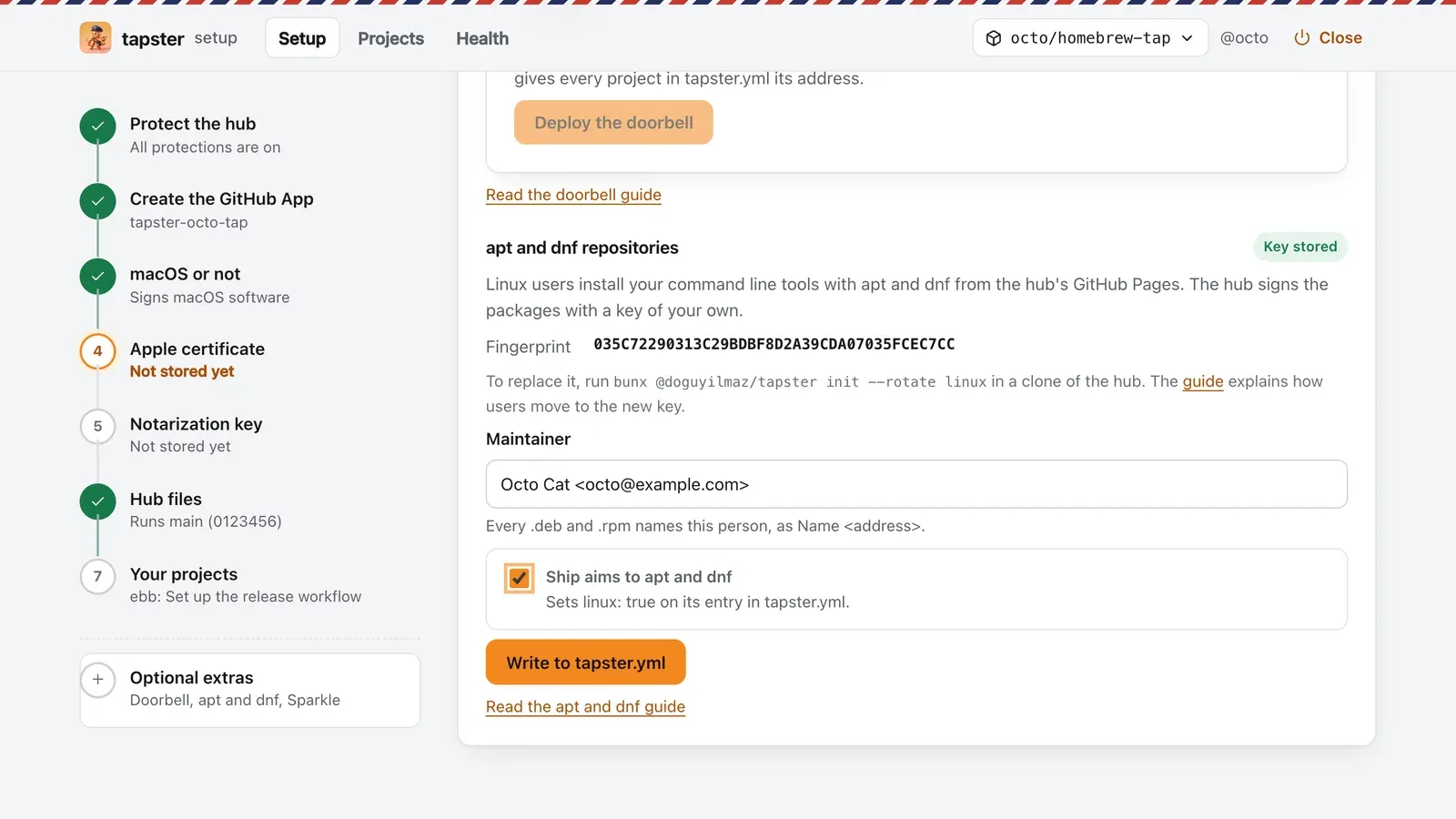
- Fill in Maintainer as
Name <address>. Every.deband.rpmnames this person. - Tick each tool that should ship to apt and dnf.
- Click Write to tapster.yml. tapster writes the change to the hub’s
mainin one commit. Like the hub files, it refuses whilemainholds commits that are not yours.
To edit tapster.yml by hand instead, name a maintainer once and set linux: true on each tool with Linux builds:
linux: { maintainer: "Your Name <you@example.com>" }packages: - name: mytool # the rest of the entry stays as it is linux: trueThen commit and push tapster.yml.
3. Release
Section titled “3. Release”At the next release of the tool, the hub builds a .deb and an .rpm for each architecture from the published Linux
archives. A second job, the only one that holds the key, checks every package against those archives, signs the rpms
and the repository metadata and publishes the site.
Rotate the key
Section titled “Rotate the key”In Setup → Optional extras → apt and dnf repositories, click Rotate the Linux key. The page shows when the previous key still signs alongside the new one. Once users have fetched the new public key, click Finish Linux key rotation to remove the previous key. A pending rotation must finish before another starts.
Rotation runs in a terminal, in a clone of your hub:
bunx @doguyilmaz/tapster init --rotate linuxThe new key signs next to the old one, so users can fetch it before the old one stops. Once they have had time to update, stop signing with the old key:
bunx @doguyilmaz/tapster init --rotate linux --finish